
Catégorie : Motion tips & tricks

  • How to export MXF for TV or VOD ads broadcast – Adobe Media Encoder

    How to export MXF for TV or VOD ads broadcast – Adobe Media Encoder

    I’ve been struggling a few times now when my clients ask me to export small tv spots for tv or online tv ads diffusion. This is why I’m gonna try to make it clear (in my own way, as a newbie in this domain) for those who might be in my situation.

    When you need to export a video for this type of use (ads), you need to make the export settings fit to the TV “canals” (once again, I don’t know if all the terms I’m using are the good ones, don’t hesitate to correct me). There’s a system of verification, an organisation that checks  the “visual requierements”, in my case this is ARPP (Autorité de Régulation Professionnelle de la Publicité).

    (suite…)
    I’ve been struggling a few times now when my clients ask me to export small tv spots for tv or online tv ads diffusion. This is why I’m gonna try to make it clear (in my own way, as a newbie in this domain) for those who might be in my situation.

    When you need to export a video for this type of use (ads), you need to make the export settings fit to the TV “canals” (once again, I don’t know if all the terms I’m using are the good ones, don’t hesitate to correct me). There’s a system of verification, an organisation that checks  the “visual requierements”, in my case this is ARPP (Autorité de Régulation Professionnelle de la Publicité).

    (suite…)
  • How to round numbers in After Effects

    How to round numbers in After Effects

    You probably already looked for it on internet… You probably crushed your head into the table trying to round numbers in your composition on After Effects! Here is the solution: math.round();

    Buy me a coffee ! ☕
    (pay what you want)

    //The function
    Math.round('what you need to round')
    
    //Returns 20
    Math.round(20.49)
    
    //Returns 21
    Math.round(20.5)
    
    //Returns -20
    Math.round(-20.5)

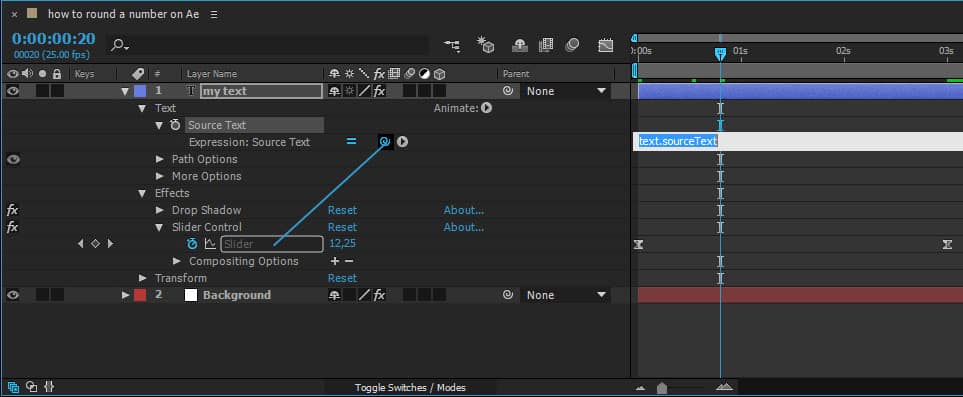
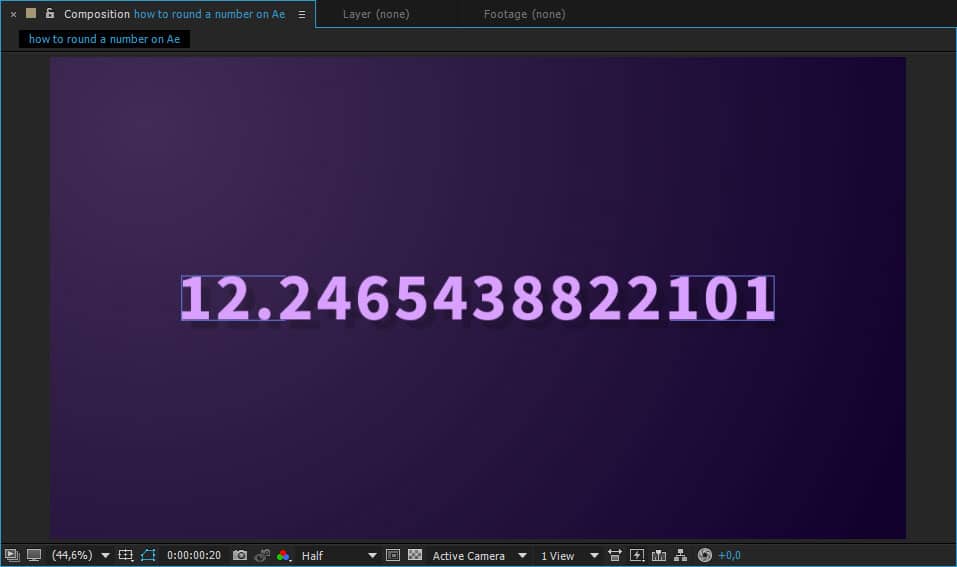
    We often use the function math.round() to round a dynamic number, for example, a number from a “Slider Control” value. If you link your Source Text to you Slider value (Alt+Click on the clock icon then link it to the Slider value)  you’ll see a weird number.

    It will return you a value in terms of the Slider position. But what we would like to do is to round this number to make the animation smoother. In order to make this you need to wrap the expression returned by After Effects with the Math.round() function:

    Math.round(effect("Slider Control")("Slider"))

    And Voilà! Here we are, we just got a beautiful round number… But as we are never satisfated, now we want to round up this number to two decimal places. In this kind of situation, remember, there is always a tip, a way to “cheat”, simply multiply the number by 100 and divide the all thing (the wrap) by 100 as well.

    //Our example
    Math.round(effect("Slider Control")("Slider")*100)/100
    
    //Returns 12345.6
    Math.round(123456*10)/10
    
    //Returns 1234.56
    Math.round(123456*100)/100
    
    //Returns 123.456
    Math.round(123456*1000)/1000
    
    //etc etc

    The last way to round number was the “Tricky” way. Because when you wanna round numbers but you still wanna keep useless zeros after the comma it will cut them out!
    Here is the proper way to do if you want to keep the full decimals. You can customise this expression, if you want more or less numbers before and after the comma by modifying the numDec and numDigit vars.

    val = effect("Slider Control")("Slider");
    numDec = 2; // digits to right of decimal
    numDigit = 1; // digits to left of decimal
    if (val < 0) sign = "-";
    else sign = "";
    s = Math.abs(val).toFixed(numDec);
    while (s.length < numDigit + numDec + 1) s = "0" + s;
    sign + s